Help
Get started with CTRL
CTRL lets you use a Windows PC from any browser. You can also let an AI helper use apps and folders you approve on that PC, and on other CTRL computers if those hosts allow it. This page uses simple steps and real pictures of the site.
Get started
- Install CTRL on the PC you want to reach Download the Windows installer. Run setup. Sign in with your DAISI account when it asks. Leave the CTRL icon in the tray so the PC stays reachable.
- Open this site and log in Use the same DAISI login. Click Login in the top right. You land on your computers.
- Pick a computer that is online Click Displays on an online computer. You will see each screen. Click a screen to take control.
- Work as if you were there Move the mouse. Type. Open a single app if you only need that program. Use the on-screen keyboard on a phone.

The screen
After you log in, you see the computers you can use.

Click Displays to pick a screen. Click a screen to open it. Pop out opens that screen in its own window.
The top bar is the control strip while you work.

- 1 2 3 — jump between screens.
- Native — show the real size. Adapt — fit the screen to your window.
- Sound — hear the PC (or mute it).
- Fullscreen — hide the top bar. Escape is sent to the remote PC; use the fullscreen button or ✕ to leave. On a phone, an Apps button stays at the top so you can switch apps without leaving fullscreen.
- Hosts — slide down a list of computers. Opening it reloads who is online.
- Apps — slide down programs on that PC. The list loads the first time you open it.
- Files — slide down shared folders on that PC. Open a folder, upload from your phone, click a file to download it without leaving the screen.
- Copy / paste — text on this device and the remote PC stay in sync. Copy on one, paste on the other.

Hold to do more
A short press does the usual thing. Hold your finger or mouse on the same control to get the extra action.
| Where | Tap or click | Hold |
|---|---|---|
| A computer in Hosts | Open it here | Open it in a new tab |
| Shortcut buttons on the keyboard (next to Fn) | Send the saved phrase (default: commit, commit and push, continue) | Edit the phrase, icon, and whether it ends with Return |
| Number or punctuation key | Type that key | Type the shift version (1 becomes !, / becomes ?) |
| Keyboard button (bottom of the screen) | Open or close the keyboard | Drag the button along the bottom |
| Debug button (right edge) | Open the debug panel | Drag the button along the right edge |
The shift version also sits in small gray type at the bottom-right of those keys, so you can see it before you hold.
On-screen keyboard
On a phone, tap Keyboard. On a computer you can still open it from the viewer. Hold the Keyboard button to slide it along the bottom. Drag the handle on the keyboard itself to move the panel.

- Fn — function keys, arrows, and Delete.
- Shortcut buttons — tap to send a phrase. Hold to edit.
- Speaker — key click sound on or off.
- Control — the CTRL logo. Tap to hold Control down until you tap it again. Same idea for Shift, Alt, and Win.
- Hold a number or punctuation key to send the gray character in the corner.
AI helpers (MCP)
An agent is an AI helper such as Claude, Cursor, Codex, or Grok. CTRL can let that helper use apps on the PC — not on this website. It only gets apps you approve.
MCP is the local plug that the helper uses. It stays on that computer at
http://127.0.0.1:17322. Nothing is opened to the public internet.
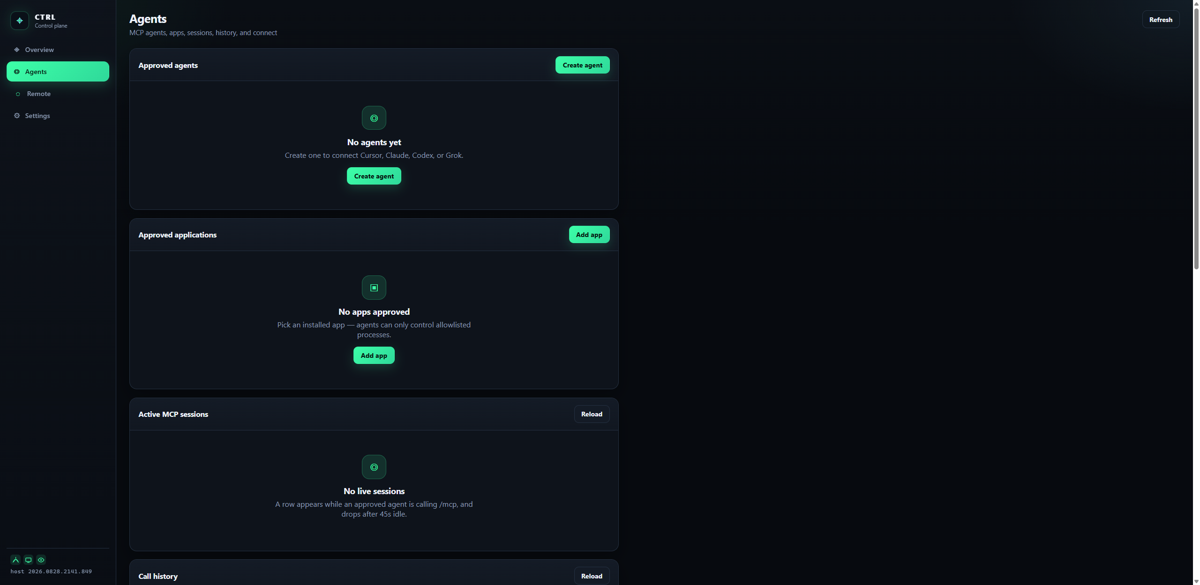
- Open CTRL on the PC
Tray icon → Open CTRL, or visit
http://127.0.0.1:17322/ui. - Create an agent
Agents → Create agent. Copy the token once. It starts with
ctrl_. Do not paste it in a public chat. - Approve apps Add each program the helper may use. If an app is not on the list, the helper cannot control it.
- Point the helper at CTRL
Tell it to read
http://127.0.0.1:17322/skill, then use thectrlMCP tools.
Most helpers want a config like this:
{
  "mcpServers": {
    "ctrl": {
      "url": "http://127.0.0.1:17322/mcp",
      "headers": {
        "Authorization": "Bearer ctrl_YOUR_TOKEN"
      }
    }
  }
}
Cursor and some editors use a small local bridge instead of a URL. Set CTRL_TOKEN to the same token.
Common tools, in plain words:
ctrl_ping— is the host awake?ctrl_list_hosts— this PC and your other CTRL computersctrl_list_apps— which approved apps are open? PasshostIdfor another computer.ctrl_screenshot_window— a picture of that app. Yellow ticks on the edges are click coordinates. Default is a real image, not a blob of text.ctrl_preview_click— paint a magenta crosshair at an x,y. Does not click. Use this until the mark sits on the right control.ctrl_mouse_click— click that point (only after preview looks right)ctrl_mouse_double_click/ctrl_mouse_drag/ctrl_mouse_wheel— double-click, drag, and scroll like a personctrl_type_text/ctrl_key_press— type or press keys in that appctrl_file_list/ctrl_file_read/ctrl_file_write— shared folders; samehostIdrule
Clicks use the app window, not the whole desktop. The helper should preview, then click, then take a new picture so it can see if it worked.
Other PCs
A helper on one computer can use apps on another CTRL computer on the same DAISI account, but only if that other computer allows it. Pause remote desktop on a host and it drops out of the list.
- On the remote PC Open CTRL → Remote. Turn on “Allow MCP agents on other hosts to control approved apps.” Only apps you already approved on that PC are in play.
- On the helper’s PC
The helper calls
ctrl_list_hosts. Hosts that allow desktop showallowDesktop. It then passes thathostIdto screenshot, click, type, and the other app tools.
File sharing is a separate switch on the Files page of each host. Desktop control and files can be on or off independently.
Shared files
Each host can share folders. You can browse them from this site (Files on a computer, or the Files slider while you are on a screen). Helpers can use the same folders through MCP if you allow agents on that share.
- Share a folder on the PC Open CTRL → Files. Add a folder. Turn on agent sharing if helpers should read or write it.
- From the website Open a computer → Files, or Files on the live screen. Upload stays on the page. Download also stays on the page — it does not jump to an error screen.
- From a helper
ctrl_file_hostslists computers that share files. Thenctrl_file_areas,ctrl_file_list,ctrl_file_read, andctrl_file_write. PasshostIdfor another computer.
Traffic goes through CTRL’s relay. It is not a LAN-only copy, so it works when you are away from the office.